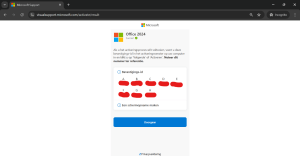
Step 7: Keep the activation screen open, you will need the installation ID in a moment. Go to; https://visualsupport.microsoft.com/ Click on ”Let’s get started”.
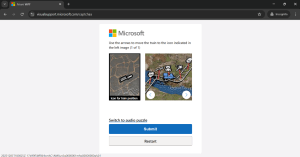
Step 8: Run the Security Captcha and click ”Submit”.
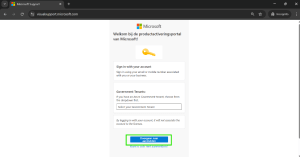
Step 9: Click ”Sign In” and then sign in with your Microsoft Account.
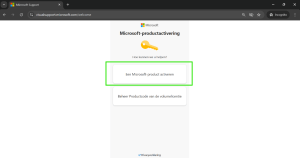
Step 10: Click on ”Activate Microsoft Product.”
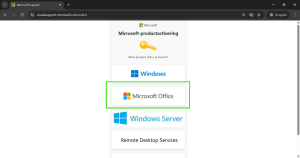
Step 11: Click on ”Microsoft Office.”
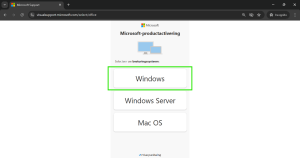
Step 12: Click on ”Windows”
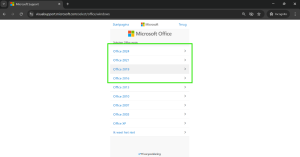
Step 13: Select your purchased Office version.
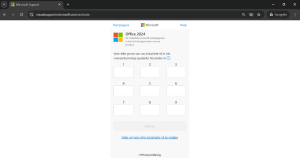
Step 14: Enter here the installation ID you see in the activation wizard of the Office application you opened. This is a string of 9 columns and each column a string of 7 numbers. Copy this sequence to avoid errors. After all the numbers have been entered into the columns, run through them briefly to make sure all the columns match. It is important that this section be done accurately. Then click ”Submit.”
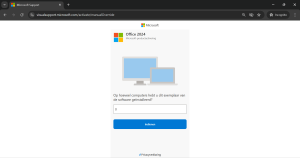
Step 15: Next you get the question; ”How many computers do you have this copy of the software installed on?” Here you enter 0 or 1. If the 1st attempt does not work, try entering the other digit. Click on ”Submit” and then on ”next” to confirm the selection.
Step 16: If this is done correctly you will receive the screen below. You will receive the confirmation ID. This is 8 columns with 6 digits each. You enter this in the activation wizard in the office application at confirmation id.
NOTE: Copy the confirmation id immediately or take a screenshot of it. As soon as you move away from the page, the confirmation id disappears. So if you don’t do this, it means you have to start from scratch.